My Obsidian Plugins and Theme
Rob Coles
One of the great things about Obsidian (and one that can make it hardest to get to grips with) is the extensibility. There are a huge number of community plugins and themes available for Obsidian, with hundreds being added weekly. The number of plugins has increased exponentially with the ease of creating them with AI.
If you are starting out with Obsidian I strongly recommend working for a while with just the out-of-the-box functionality. Once you are comfortable with that and have identified gaps, you can venture down the rabbit hole that is community themes and plugins.
I have experimented with lots of different themes and plugins over the years I’ve been using Obsidian. These are the theme and 19 plugins that have stuck.
Theme
I started using Obsidian with the default theme. Then I went on to experiment with Minimal, Sanctum, Border, AnuPpucin, which I was on for a long time, but is not receiving updates any more, FastPpucin, Ebulientworks, Cybertron, California Coast. I recently did a Tiny Experiment to look at some of the themes that had come to my notice more recently and tried evaluating them against what I actually wanted/needed. The experiment looked again at Minimal and the default theme, and added Baseline, Retroma, Velocity, Underwater and SpeedPpucin. The bottom line was that the default theme did more than 80% of what I wanted, and I could achieve the rest with CSS snippets, with a bit of help from AI. The extra bits I wanted were:
- Colouring headings
- Compressing lists a little
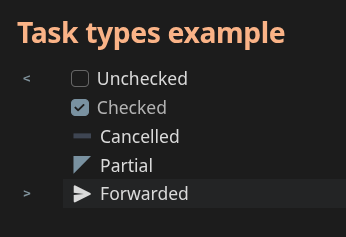
- Allowing more values in checklists than just done or not done. I use a version of the bullet journal bullets.
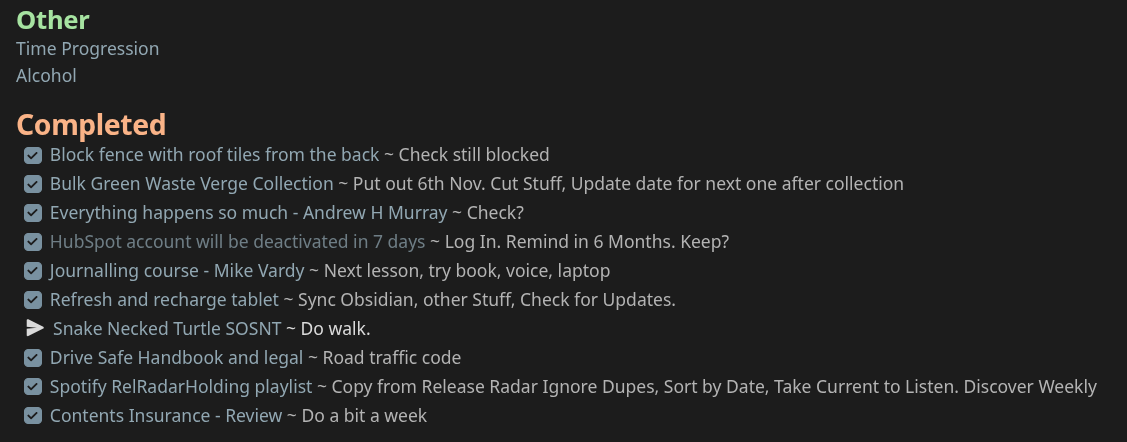
The above is an example of the headings and bullets from a daily note.
Ultimately the theme chosen is a very personal thing, and I don’t regret the time spent experimenting with other themes, but it can be a real time suck.
The CSS I currently use is available in the public repository My Obsidian-related code .
Plugins
In the same way as with themes, I have gone through a number of different plugins. Only a few have stood the test of time, and I’ll just list and briefly discuss the ones that have stuck. I do look at the list of newly released plugins that are maintained at ObsidianStats once a week and will try anything that particularly grabs me. Clicking on the plugin title will take you to the entry on the Obsidian community page.
Advanced Note Mover
I have a simple folder system but I capture “stuff” to the default folder, then as it is processed it will go elsewhere.
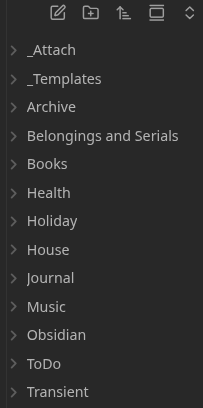
Often, captured things become tasks, and I set a frontmatter “Priority” field to an appropriate value. I use Advanced Note Mover to automatically detect these and move these notes to the “ToDo” folder. The rules within Advanced Note Mover look like:
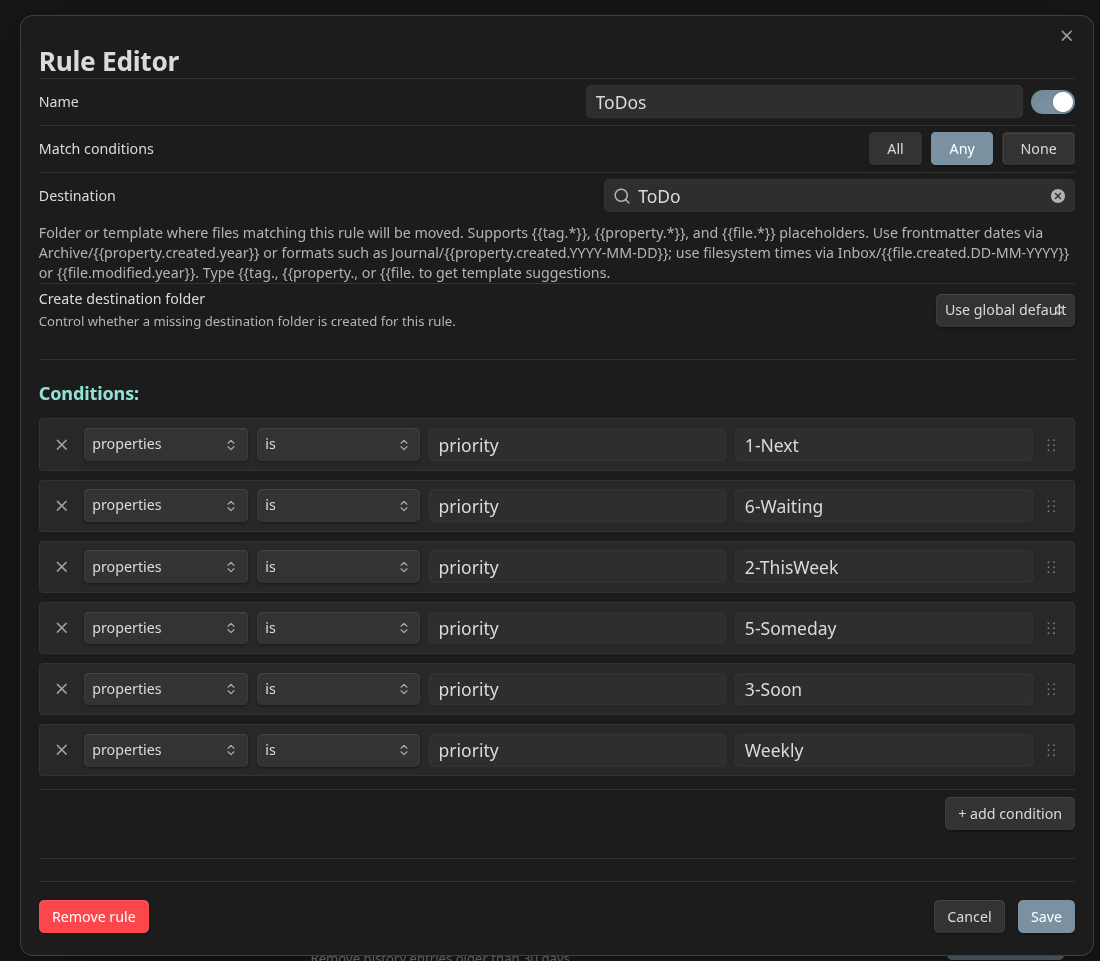
The time this saves from me manually moving notes is small each time, but I normally process notes to tasks multiple times a day and the time soon adds up.
Another Quick Switcher
I have replaced the standard Obsidian Ctrl-O to open a note with Another Quick Switcher. I find this is quicker and easier to use than the Obsidian default, and I often need the fuzzy search to go with my fuzzy memory.
Book Search Plus
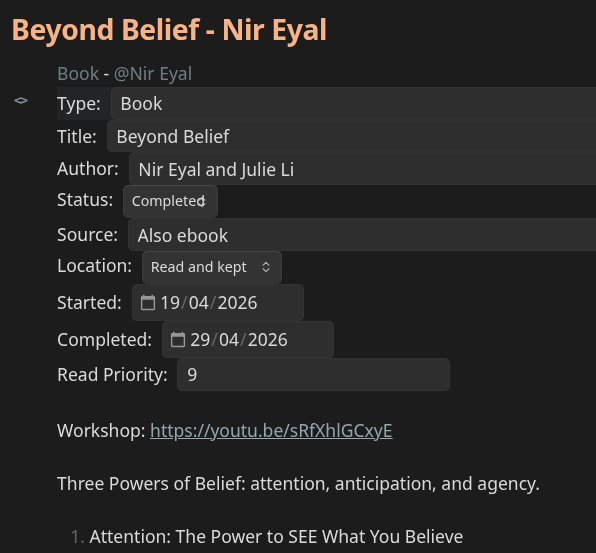
I track my books and reading in Obsidian, which has saved me from ending up with multiple copies of books several times. Book Search Plus will take a few key words like author surname and part of title and search the Google Books data to find books that match. I use a template for books and the plugin can use the template and automatically populate frontmatter fields. I don’t store a ton of metadata for books, but this completes the basics for me. I keep my own notes from the book in the same note. The template I use is in my code repository already linked.
Clear Unused Images
This plugin will search through your notes for any un-referenced attachments and delete them. I run this once a month to catch any orphan attachments. This is getting used less now that Obsidian prompts to delete attachments if you delete a note. It normally only gets one or two unless I have been doing cleanup outside of Obsidian.
Commander

I really under-use this plugin. It allows you to add commands to various places in the Obsidian UI. I only use it to add an icon that runs the Task Collector (see later) “Move completed tasks”. I make extensive use of checkboxes for tasks in notes, and this gives me one-click to run the command. It is particularly useful on mobile. I use it multiple times a day to keep my daily note todos clean, and while I’m wandering around the supermarket checking stuff off my shopping list.
The screenshot in the Theme section above shows the result of running from this icon, moving completed and deferred tasks to a Completed section at the bottom of the note.
Daily Notes Calendar
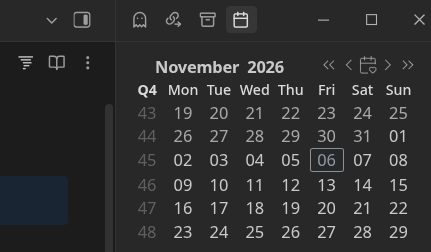
The calendar is always visible in the right sidebar. I don’t use it to create my periodic notes - these are created outside of Obsidian, see other blog posts like my Daily Note for the details, but I often use it to switch notes, to see how I’m doing against my targets in the periodic notes etc. I have tweaked some CSS to get rid of the UI elements I am not interested in, and to squash it up a bit.
Datacore
I was a heavy Dataview user, but since finding that it is no longer being actively developed, I went to its successor, Datacore instead. I went through an exercise to try to move as much as possible from Dataview to Bases, which weren’t a thing when I started with Obsidian. Bases replaced a lot, but there were some things it couldn’t do. For example I am currently using Datacore for are my weekly habit tracking
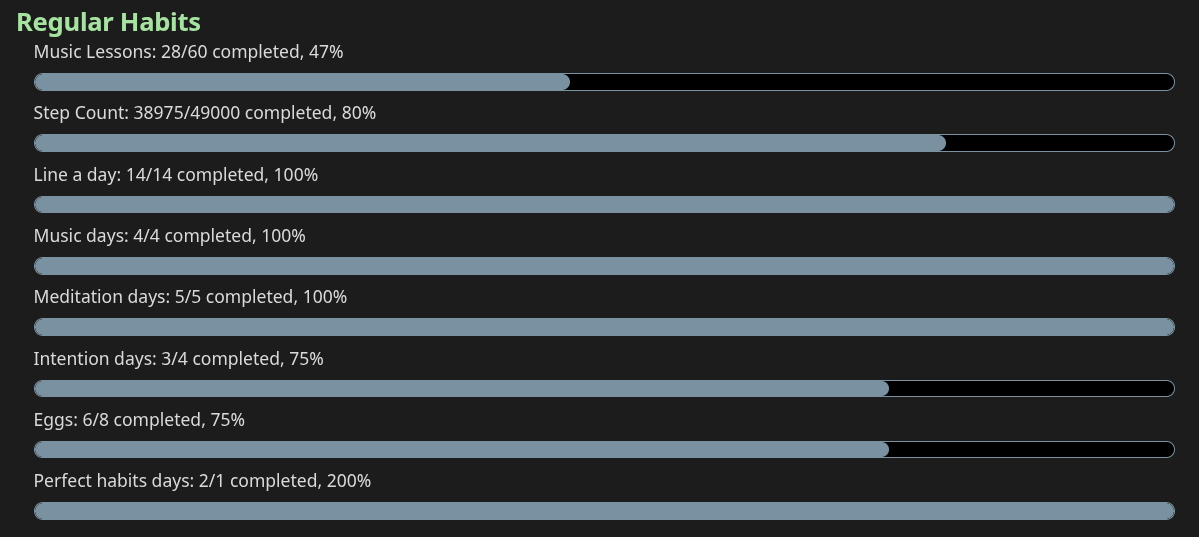
Datacore code is in my Obsidian code repository WeeklyTemplate here
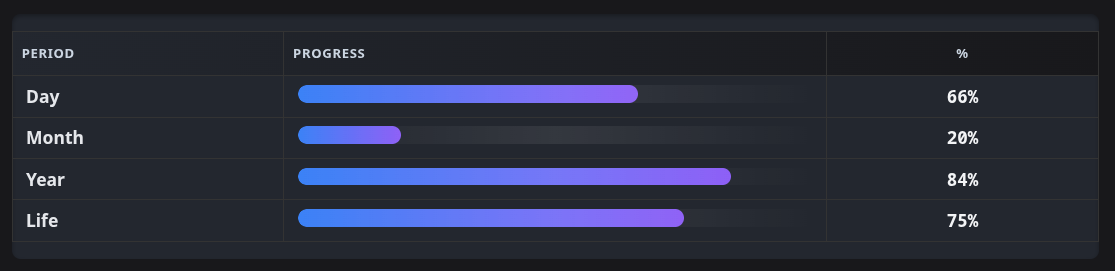
And in my attempt at a memento mori:
jTab Guitar Codeblocks
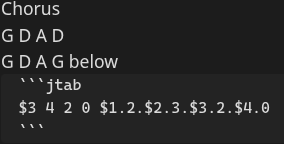
I am learning guitar and ukulele and this is a way to have tabs and chord charts included in my notes without having to use images. jTab is defined here and an example from my notes is:
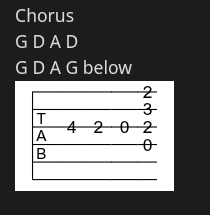
This is rendered from a codeblock:
It can render standard chord diagrams easily too:
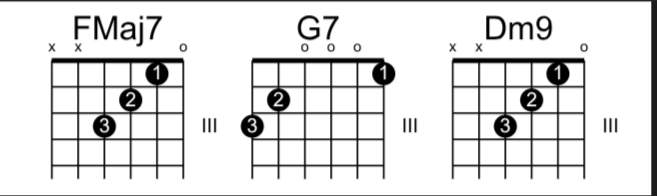
Where the code block looks like:

Linter
An automatic text cleanup function. Not much to see with this one, but it helps to make my notes consistent. It is triggered on save and does things like deleting successive blank lines, ensuring heading capitalisation is correct etc. There are a huge number of options here, and it means I don’t waste my time on small layout changes as much.
Meta Bind
A way of visualising frontmatter in the body of a note, and an easy to use picker.
Back in the good old days before frontmatter had a UI, I used the Dataview plugin, and its inline variable display mechanism of “key::value”. I like being able to see this data inline. Time passed and frontmatter was introduced. A lot of the new functionality the Obsidian team have delivered, like Bases, will only work with frontmatter and I eventually made the switch, but I don’t like all of the values being right at the top of the note, and it is a pretty ugly display. Meta Bind allows these frontmatter fields to appear in the body of the note, and enhances with things like pickers for lists. For example, this is the note for this blog post in my todos:
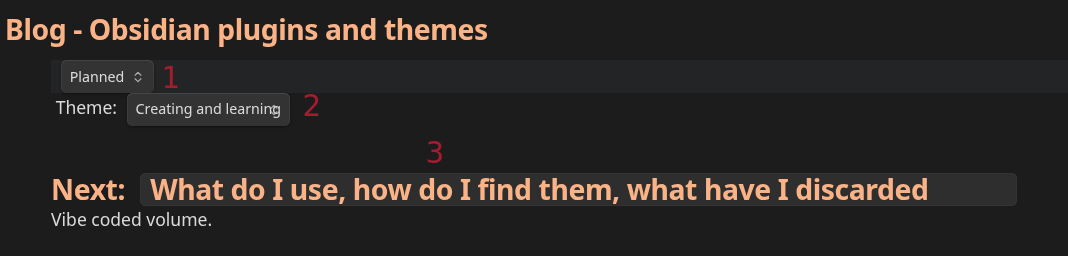
The frontmatter, if displayed, would look like the top of the screenshot below. The Meta Bind incantations are also shown. This looks a bit messy in source mode but is hidden in preview. The numbers in red link the various elements.
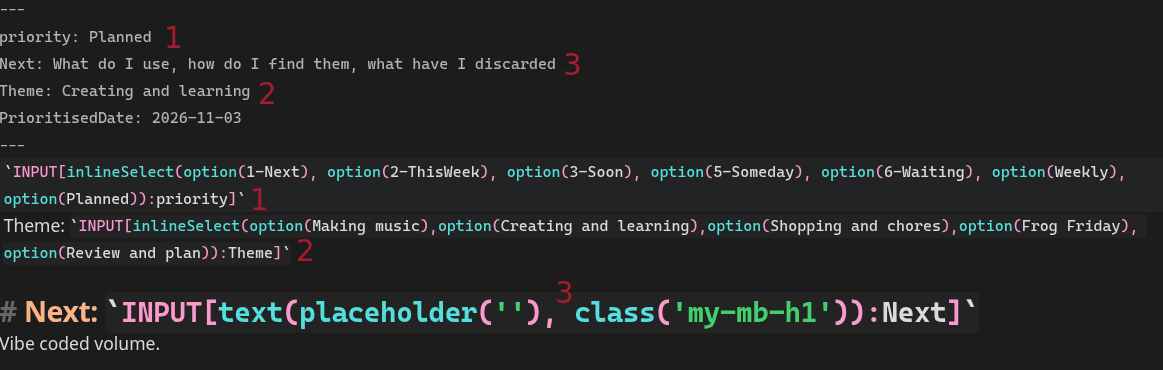
Both the priority and theme have drop-downs so the frontmatter stays consistent.
Note Progress bar
I wanted a simple progress bar that would look at all checkboxes in a note and split by done or not done, reporting that as a percentage. I wanted this to go across sections as I often move completed items out of the way using Commander. It also needed to understand extended checkbox values as I use a number of different bullet-journal type checkboxes. I couldn’t find anything that worked the way I wanted so I got Claude to vibe-code one. I have not submitted this for official approval, but it is working very well for me.

QuickAdd
QuickAdd is an easy way to add content or notes to your vault. It is aware of Obsidian notes and headings and I mostly use it as a macro system on steroids. The macros I have set up are added to hot keys, often using the Sequence Hotkeys plugin below.
The things I have configured are:
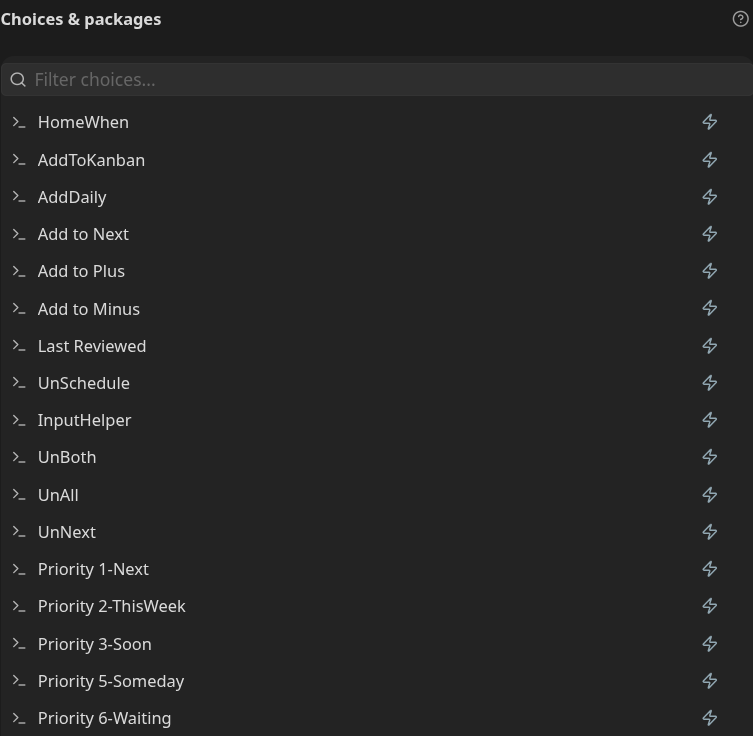
For example, “Priority 1-Next” will add the frontmatter for priority and add the Meta Bind text to display it. This is attached to the Alt-GQ hotkey. See the Meta Bind section above to see what that actually looks like once entered.
“Add to Plus” will prompt for some text to add to my weekly note “Plus, Minus, Next”, “plus” section in the correct current weekly note.
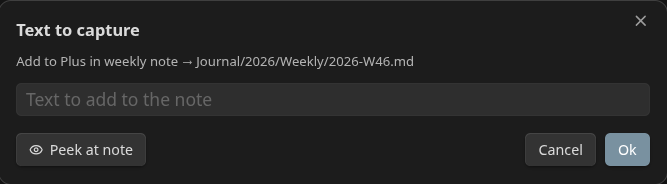
QuickAdd can easily trigger javascript if the internal functionality isn’t enough.
Recent Notes
This is, as it says on the tin, a list of the most recently updated notes. The list sits in my left hand sidebar. I often return to the same note multiple times a day and this keeps them to hand. The screenshot doesn’t show it, but there is a separator between days. You can click to open or right-click for the usual note-related options.
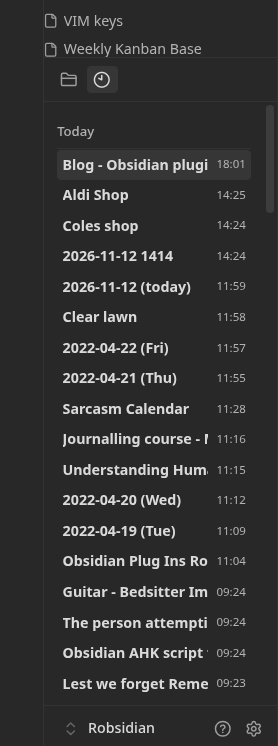
I have some CSS that squashes up the entries in the list so I can see more on the screen without scrolling.
Regex Find/Replace
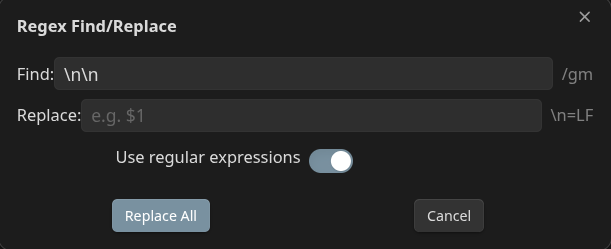
I don’t use this as much, now I am using the Linter. I used to use this to replace double newlines in notes, and for other cleanup, especially when pasting content in from external sources. As the name suggests, it allows use of regular expressions as well as the normal search and replace.
Sequence Hotkeys
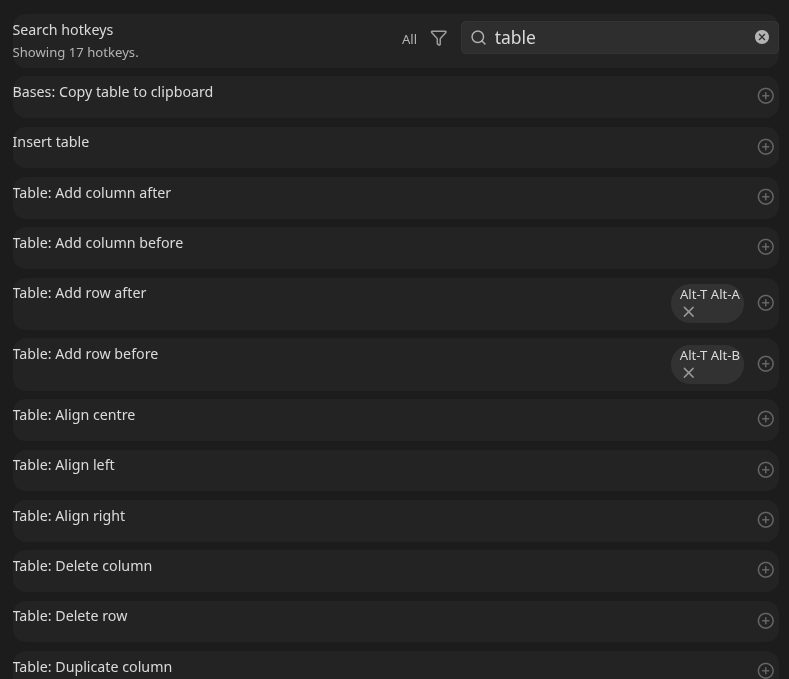
This plugin allows attaching key combinations as hotkeys to commands in Obsidian. I was rapidly running out of hotkeys, but with this plugin I have a hotkey initial letter then multiple other letters for different functions, e.g. I Use Alt-T for Table “something” so Alt-TB is Table Insert row Before, Alt-TA is table insert row after. Alt-U is Undo “something” so Alt-UN will undo the “Next” Meta Bind text and frontmatter.
Smart Random Note
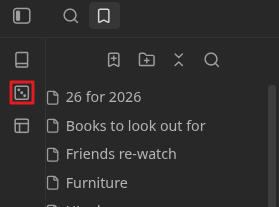
I use this as part of my weekly Note Gardening . The plugin puts a dice icon in the ribbon, and will pick a random note from the current search. I use it with a workspace with a custom search that just ignores my templates and attachment folders, and every week I’ll look at a dozen or so random notes from my vault. I’ll clean these up, enhance or link them as necessary. See my blog post on Note Gardening for more details on my process. I use a saved workspace to implement the search.
Task Collector
This plugin is like a Swiss army knife for tasks. I use it with Commander to move completed tasks to a section at the end of a note, and I have attached a hotkey that will allow me to cycle through all of the different task marks I use. I use some other options infrequently but these are the ones I use most, and the command key I’ve assigned lets me cycle quickly through them.
Templater
Templater makes it easy to repeat content including variables and executing Javascript if needed. For example, if I am not adding books using the Book Search Plus plugin, I have a templater template that will set up the frontmatter and move the completed note to the “Books” folder. It can also do much more complex things, display prompts and insert or calculate data. It has full access to the Obsidian internals, for example, to get the list of my current plugins I can use the templater script:

Vim Motions
I use Neovim as my regular editor and have got used, eventually, to the text navigation. Obsidian has a more limited “Vim Mode” out of the box, but this plugin is much more comprehensive. It is a modal editor, which takes some getting used to, but makes navigating around text very fast. It is a painful few weeks of learning, but the investment in time is paying off now.
Gone but not forgotten
The brief list below is plugins that I’ve used a lot, but where Obsidian functionality or my use case has changed. They were all valuable in their time. Dataview - replaced with Datacore Advanced Tables - Obsidian functionality is good enough for my use case Kanban - Using the Bases Kanban view Obsidian Day Planner OG - I am not time blocking any more. This was great when I was. Reminders - Issues with sync and reminding on multiple devices meant I ended up dropping this.
Conclusion
This is my current list as of 16th November 2026. I am trying to keep my use of plugins to a minimum, which may seem like an odd thing to say, having just listed 19, but I am very aware that although my notes are in Markdown so in theory will be readable far into the future, Obsidian itself may disappear at some point, and it is not open source. Most of the plugins I use are quality-of-life improvers, rather than critical parts of my workflow, so not having them would not render my notes useless. They would be uglier!
They do all make my workflow easier though. They have stood the test of time and I would recommend them all.
Resources:
Comments
No comments yet.