Obsidian Extras
Rob Coles
Having worked with Obsidian since 2021, and basically organising my life with it, I really appreciate the functionality it delivers out of the box. The plug-in ecosystem enables many other functions. I currently run with 19 community plugins and one that Claude vibe-coded for me. This works really well for my use-case but there are a few requirements where I have found speed or quality of life improvements by doing Obsidian-related things outside of Obsidian.
Code for these, where applicable, is in my public repository here: My Obsidian-related code
Quick capture
I love Obsidian and it is normally very responsive once it’s running. Startup, especially on mobile can be a little slow. I quite often want to be able to grab a thought for Obsidian for later, and don’t want to interrupt what I’m doing to switch to it or wait for Obsidian to load if it’s not open already. To achieve this, I have a couple of ways to “quick capture” information to my Obsidian Inbox. They both rely on Obsidian just needing a markdown file for a note, and generate a minimally formatted note in the Obsidian inbox folder. Obsidian Sync then moves it between platforms.
I review inbox items at least weekly, normally more often.
Linux
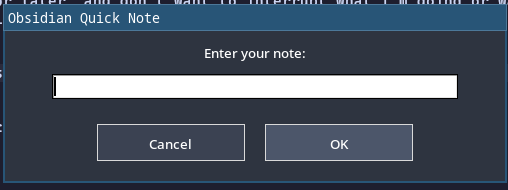
When I was using Windows, quick capture was via a couple of AutoHotKey macros. When I moved to Linux, I re-created the simple one-line version with a python script, bound to the hot key “Super-O”. I can hit this key combination from anywhere and I am prompted for a line of text. This creates a note named with the date and time, in the Obsidian inbox folder, with whatever text I had entered.
Android
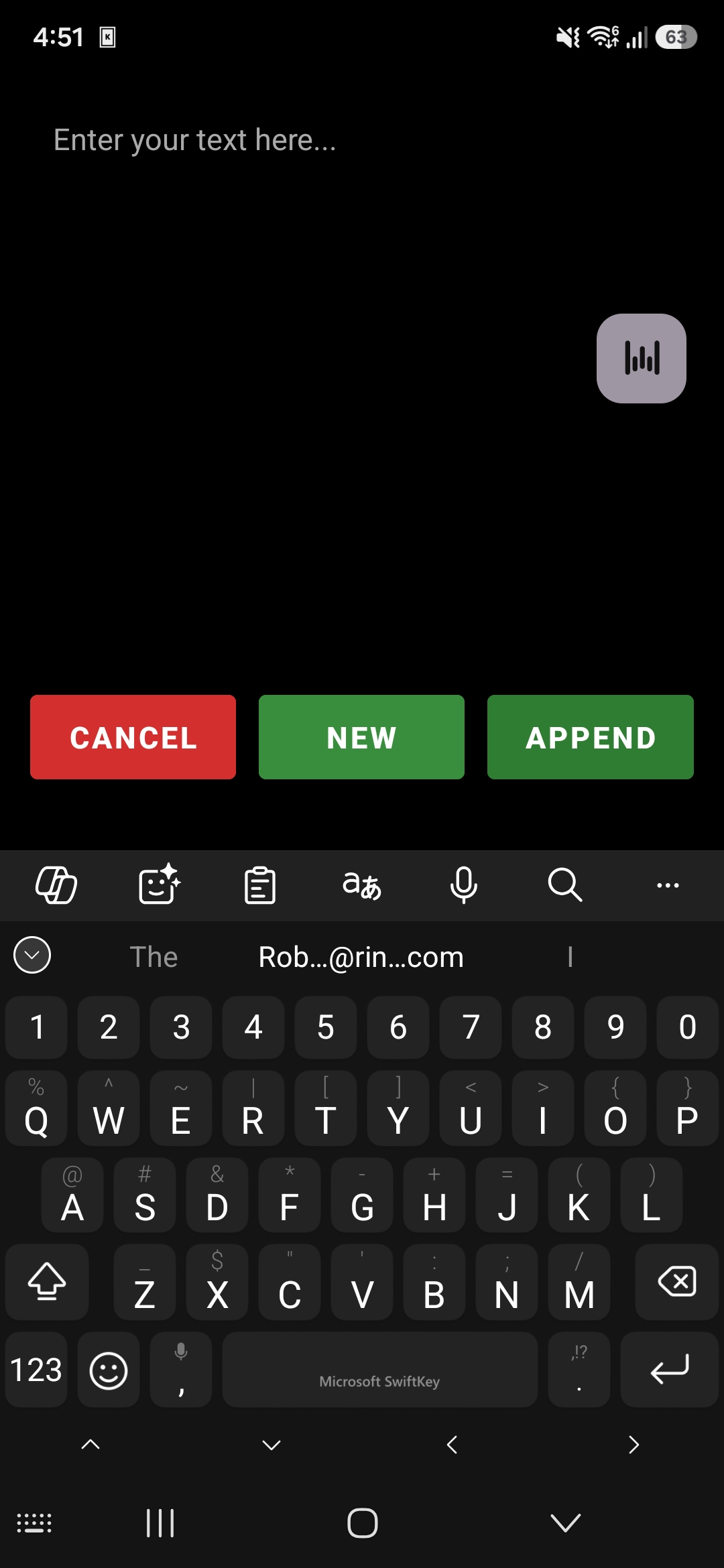
The Android quick capture is a bit more complex. This was mostly vibe-coded in Kotlin by Claude Code. It runs from an icon on my phone main display and is also set up to be a share target so can receive text from any other android app that can share. It has the option to create a new note with the same name etc. as the Linux version, or it can append to a “scratchpad” note if I want it all in one place. I’ll sometimes use this if I’m using Google Lens to OCR bits of a book I’m reading and want everything together rather than a bunch of separate notes. Normally I’ll just grab it to a separate note and process them later.
Quick-capture is really the only external function I use on Mobile. Anything more heavy-duty I will do on the desktop and let Obsidian Sync bring to mobile.
Keyboard macros
AutoHotkey enabled keyboard macros for me when I was using Windows, but now I’m on Linux and Wayland I am using Espanso. I have set up Espanso shortcuts for a number of things that I often need, not just for Obsidian, like automatically entering today’s date, or my email or postal addresses. I have a couple of Obsidian-specific ones too.
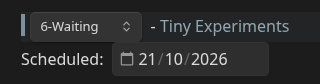
My workflow uses one note per task, and I assign a priority to these task notes. As Obsidian and I have developed, this has gone from 2 tags to a dataview embed , to a link, and finally to frontmatter with a Meta Bind dropdown to show it in the body of the note itself. I am happy with the way it looks - it’s the “6-Waiting” in the screenshot. My priorities themselves are based around GTD/“The secret weapon” which is discussed in more detail
Having priority in frontmatter makes it easy to use in bases queries, and I’m playing with the new bases kanban view with it, but adding it manually would be a pain. The raw view looks like:
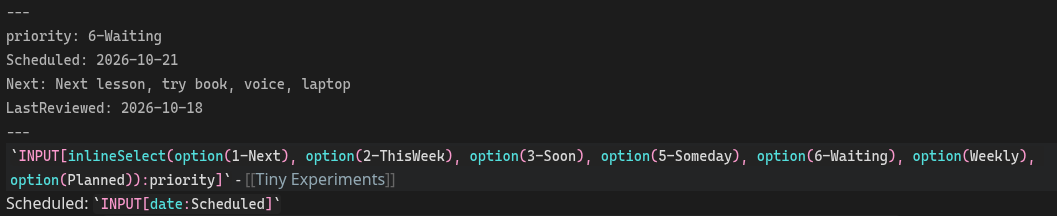
You can see the frontmatter for priority between the “—” fences, and the line starting “`INPUT(” which is the Meta Bind syntax to retrieve the priority frontmatter item and display it with a dropdown.
My chances of manually entering this without error are nil, but I like the way it works and the consistency that the drop-down gives me, so I have an Espanso macro to help. E.g. for priority “1-Next” I just key “;h1”. This triggers the following expansion:
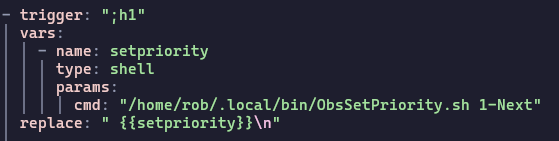
This expansion calls a small script, below, that uses the Obsidian CLI to set the frontmatter for me in the current note, and pastes in the Meta Bind string for the drop down.

AI helped to pull all this together. While it looks a little complex, I run these priority expansions multiple times a day without issues.
Python scripts
I remember spending hours wrestling with the Evernote API. Now my notes are just plain text files in a specific location, and that makes it easy to do things like mass updates, or generating my daily and other periodic notes. See separate posts for information on my periodic notes. Some of these things would probably be do-able within Obsidian with Templater and Datacore but it is often easier, and I am more familiar with just having a Python script. I used a Python script to convert my task priorities from being links like “[[6-Waiting]]” to being frontmatter entries for example. Each day when I start my PC it runs a Python script, triggered by Sway, to generate my daily note
Ripgrep and search generally
I use the “Another quick switcher” plug-in to open notes based on note titles within Obsidian, and this works well. Obsidian does have a built-in search capability, but it can be quite slow (I have about 7000 notes). You can embed the results in a note, which is handy, but if I just want to find a note that has something in the body of the text, I tend to use a command line search tool called ripgrep . I have short shell script, “rgo” which will switch me to the Obsidian vault directory and then do a lightning-fast search for whatever I am looking for, with the option of regular expressions if I need them.
rgo script
!/bin/bash
# Ripgrep obsidian MD files only
START_DIR=$(pwd) # Capture current directory
cd ~/Documents/Robsidian/
rg "$1" -i -g '*.md'
cd "$START_DIR"
Conclusion
These are the external to Obsidian things that I use to enhance my Obsidian experience. In general I prefer to use an Obsidian solution to a problem, but the local file nature of Obsidian gives lots of flexibility for changes outside of what is delivered.
Most of the code I use outside (and sometimes inside) Obsidian is available in my Obsidian repo, linked in the resources. Please feel free to look at or use anything there. If you have any external automations that help with Obsidian, please share in the comments.
Resources:
Comments
No comments yet.